
Controller Settings
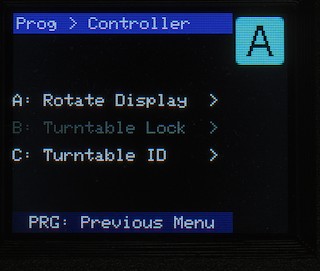
Note that option "B" (Turntable Lock) is not yet implemented. We hope to add that function in the near future, although there's no planned target date for that yet.
Rotate Display
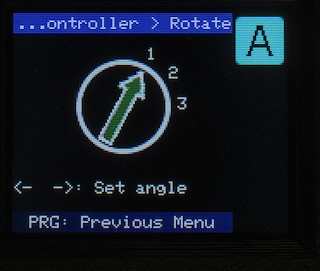
By default, the turntable "Home" position is displayed with the arrow vertically up. Whilst this is fine as a default, it doesn't necessarily reflect the reality of your layout. In normal use, perhaps, you might be holding the controller in front of you and the default road is at 90 degrees to the left.
Rotate Display allows you to adjust the position of the turntable on the screen, so it better matches reality. Simply use the ACW/CW buttons to rotate the on-screen display, until the arrow is pointing in roughly the same direction as the turntable.
The rotated position is saved continuously, so there's no need to press "D" - simply press PROG to return to the controller menu.
Turntable ID
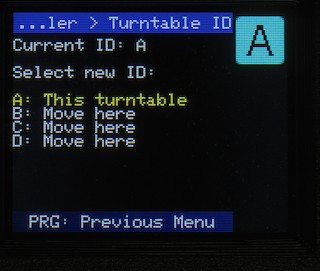
When you added this turntable, you gave it a letter A-D. Should you wish to assign it to a different letter, this menu accomplishes that. Simply press the letter you want to move it to, and it shall move, et voila!
If there's another turntable in the slot you want to use, the two turntables will swap places (e.g. A & C, you move A to C, so C becomes A). If you are re-arranging a few turntables, this might end up being a bit like one of those sliding block puzzles... but it should be relatively easy.
The on-screen letter indicator ("A" in this case, above) will not change until you exit programming mode, at which time it will display the newly selected turntable in the correct on-screen position.
No Comments